EXPLORING ACCESS
1. WORKING WITH ACCESS
1.3. FAMILIARISING WITH THE RIBBON
The Ribbon is the long strip comprised of tabs with buttons across the top of the main window within the Access interface. Since Access 2007, Ribbon has replaced all the menus and toolbars that were found in Access 2003 and older versions. The Ribbon is designed in a way that aids you in quickly finding commands that help complete a task and contains almost all of the primary commands for working with access. You no longer have to search commands endlessly through many menus and sub-menus.
However, the File tab still exists, as does a single toolbar called the Quick Access
Toolbar. All the other commands are now found in the various tabs of the Ribbon
within the interface.
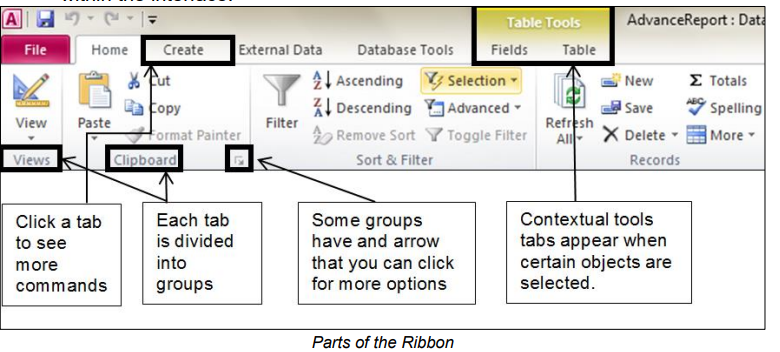
The Ribbon is designed to respond to your current task; however, you can choose to minimize the Ribbon if you find that it takes up too much screen space.
Click the arrow in the top-right corner of the Ribbon to minimize it. Click a tab to
make the Ribbon reappear. It will disappear again when not in use. To maximize
the Ribbon, click a tab, then click the pin icon in the lower-right corner. The
Ribbon will appear at all times.
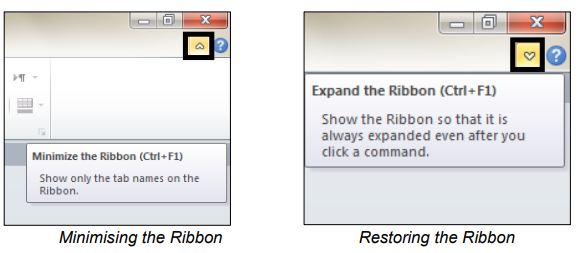
As an alternative, you can also double-click on any tab heading to minimize or
restore the Ribbon.