- Utility software refers to system software designed to analyze, optimize and maintain a computer in good working conditions. Utility software usually focuses on how the computer system operates. Although operating systems typically include some built-in utilities, many stand-alone utility programs are available. Examples include
- Antivirus utility
- Screen Saver utility,
- File compression utility.
4.3 SOFTWARE NOTES
| Site: | UNITE LMS |
| Course: | COMPUTER BASIC SKILLS |
| Book: | 4.3 SOFTWARE NOTES |
| Printed by: | Guest user |
| Date: | Wednesday, 22 July 2026, 10:24 PM |
Description
Click on the above link to access this reading material. This module covers two units
- System software
- Application software
1. COMPUTER SOFTWARE
UNIT ONE: INTRODUCTION TO SOFTWARE
By the end of this unit you should be able to:
- Define and describe the types/classifications of software: (definitions with examples) Application & System Software
- Describe the characteristics of computer software
UNIT INTRODUCTION
The usefulness of computer hardware depends a lot on available software and the ability of users to evaluate, monitor, and control the utilization of the software. (The Computer System), we met the term ‘computer software. We saw that: Computer software refers to the electronic instructions and procedures that control the operation of a computer.
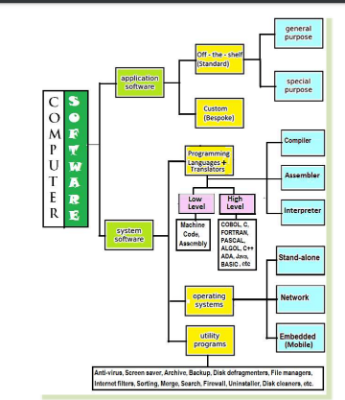
There are two major types of software: system software and application software. Each performs a different function. System software e.g. the Operating system manages and coordinates all the other computer programs, devices, resources, and activities. While Application software like Word-processors, Paint, Calculator, and, Games solves the specific or exact needs of the user.
TYPES AND CLASSIFICATIONS OF COMPUTER SOFTWARE
Computer software can be generally broken down as shown in the chart below:
1.1. Computer Software Terminologies
System software is a set of programs that control or maintain all the operations of the computer and its devices, such as the CPU, communication links, and peripheral devices.
System software serves as the interface between the user, the application software, and the computer's hardware.
System Software Includes:
- An Operating system and Device Drivers
- Utility Programs and
- Programming Languages (Translators and Library Programs)
OPERATING SYSTEMS
An operating system is a generalized program that manages and coordinates all the activities taking place within a computer system.
The operating system functions as a middleman between the user and the computer, as well as between application software programs and the hardware devices
1.2. Factors to Consider When Choosing An Operating System
When choosing an operating system for a computer the following factors may be
considered:
- The type of computer in terms of size and make. Operating systems are available for all sizes of computers.
- The hardware configuration of the computer such as the memory capacity, processor speed, and hard disk capacity should meet the required minimum requirements for the operating system to run well.
- The application software to be installed on the computer should be supported by the operating system. For example, Microsoft Office 2010 cannot run on Windows 2000.
- The operating system should be user-friendly. This depends on the skills of the intended users of the computers.
- The operating system should have adequate information and help guides for user reference.
- The cost of the operating system
- Reliability and security are provided by the operating system.
- The number of processors and hardware devices it can support.
- The number of users it can support
- The availability of basic utilities and accessory programs within the operating system
1.3. FUNCTIONS OF AN OPERATING SYSTEM
FUNCTIONS OF AN OPERATING SYSTEM
Most operating systems provide similar functions that are outlined as follows :
- Starting a computer, (Booting the computer)
- Providing a user interface,
- Managing programs,
- Configuring devices, (Device drivers are often needed). Plug and Play devices are recognized automatically.
- Monitoring performance
- Providing file management.
- Administering security.
- Managing resources.
- Coordinating tasks, and Spooling.
- Managing memory,
- Establishing an Internet connection
A) STARTING THE COMPUTER, (BOOTING) AND TURNING IT OFF
The process of starting or restarting a computer is called booting. The process of turning on a computer after it had been powered off completely is known as cold booting. Warm booting is the process of restarting a computer that already is powered on. When you install new software, often an on-screen prompt instructs you to restart the computer. In this case, a warm boot is appropriate. On startup, the OS may verify that the person attempting to use the computer is a legitimate user through use of a password. After the user logs on, the desktop and icons are displayed on the screen. Finally, the operating system also executes programs in the Startup folder, which contains a list of programs that open automatically when you boot the computer. TURNING OFF When you instruct the computer to Turn Off, (See figure), the operating system properly closes any open processes and programs, saves your settings, and shuts down the computer.
B) PROVIDING A USER INTERFACE
Computer users interact with software through its user interface. A user interface is the part of the software with which you interact; it controls how data and instructions are entered and information is presented on the screen.
It is through the user interface of an operating system that you communicate with the computer.
TYPES OF USER INTERFACES
Three types of user interfaces are
- Command-Line Interface (CLI),
- Menu-Driven Interface (MDI), and
- Graphical User Interface (GUI).
Most operating systems use a combination of these types of user interfaces to define how you interact with your computer.
1. Command-Line Interface
With a command-line interface, you type keywords such as COPY, RENAME or DEL, using the keyboard to enter instructions. A keyword is a special word, phrase, or code that a program understands as an instruction.
2. Menu-Driven Interface
A menu-driven interface provides menus as a means of entering commands. Menu-driven interfaces are easier to learn than CLI because users do not have to cram keywords for commands. The characteristic of being easy to learn and use is described as being User
3. Graphical User Interface (GUI)
Most of today's software programs have a graphical user interface (GUI). A GUI is a user Interface in which visual images such as icons and buttons are used to issue commands.
Of all the interfaces a GUI typically is the most User friendly, because it does not require you to know any command language.
DISADVANTAGES OF A GUI AS COMPARED TO CLI
- GUI requires the computer to have more RAM as compared to Command-Line.
- Command line instructions execute faster than GUI instructions
- Processing GUI images ‘wastes’ CPU cycles
EXAMPLES OF ELEMENTS/ OBJECTS OF A GUI
A GUI has very many features/elements in form of graphics that a user interacts with while using a computer. Some of these include:
|
|
A GUI menu displays a set of available commands or options from which you choose
one or more.
An icon is a small graphic that represents an item such as a program, an Instruction,
or a file on a computer’s hard disk
C) FILE MANAGEMENT
The operating systems help to organize files and folders on a computer’s hard disk drive.
WHAT IS THE DIFFERENCE BETWEEN A FILE AND A FOLDER?
A file is a collection of bits that have been processed and stored in secondary memory.
A file may be a document that may contain
characters such as a letter, a database, a
computer program, a song, a picture, etc.
A folder is a directory that usually contains
related information. A folder can contain
both files and other subfolders. Folders are represented by a folder icon.
D. MANAGING PROGRAM
Operating systems can support just one user running one program or many of users running multiple programs.
These various capabilities of operating systems are described as
i. Single-tasking,
ii. Single-user and multi-user,
iii. Multitasking, and
iv. Multiprocessing,
- A single user-single tasking operating system allows only one user to run one program at a time, while a single user-multitasking operating system allows one user to work on two or more programs that reside in memory at the same time.
- A multi-user operating system enables two or more users to run programs simultaneously. For example, mainframes, allow hundreds of users to connect at the same time.
- A multiprocessing OS manages the coordinated processing of data by more than one processor. Multiprocessing increases a computer's speed and helps in fault-tolerant systems. Common File Extensions
- When a computer is running multiple programs concurrently, one program is in the foreground and the others are in the background.
- To make a program active, click on its tab on the taskbar or its window.
- This causes the operating system to place it in the foreground. In addition to application programs, an operating system manages other processes.
- Some of these processes are memory residents.
- They include utilities and routines that provide support to other programs or hardware.
D) MANAGING MEMORY
The purpose of memory management is to optimize the use of RAM. RAM holds data and instructions while the
processor is using them.
- The operating system allocates data and instructions to an area of memory while they are being processed, and carefully monitors the contents of RAM.
- Finally, the operating system releases these items from RAM when the processor no longer requires them.
- If you have many programs running at a go, it is possible to run out of RAM. So, the OS may have to use virtual memory.
- With virtual memory, the operating system allocates a portion of a storage medium, usually the hard disk, to function as additional RAM.
- As you interact with a program, part of it may be in physical RAM, while the rest of the program is on the hard disk as virtual memory.
- Users may notice the computer slowing down while it uses virtual memory because virtual memory is slower than RAM. The area of the hard disk used for virtual memory is called a swap file.
E) COORDINATING TASKS
The operating system determines the order in which tasks are processed.
- A task, or job, is a piece of work or operation that the processor manages.
- Tasks include receiving data from an input device, processing instructions, sending information to an output device, and transferring items from storage to memory and from memory to storage. Thousands of tasks can be going on in a computer simultaneously.
- Sometimes, a device may be busy processing one job when it receives a second job. This occurs because the processor operates at a much faster rate of speed than peripheral devices.
- For example, if the processor sends five print jobs to a printer, the printer can print only one document at a time.
- When this happens, the OS allocates/assigns memory to the jobs in the execution queue in an area called the buffer.
- A BUFFER is an area of memory or storage in which data and information is placed while waiting to be transferred to or from an input or output device.
- Operating systems typically use a technique called spooling to increase computer system efficiency.
- SPOOLING refers to the process of putting tasks that need to be done into a buffer until they can be executed.
- The operating system commonly uses a print spooler with print jobs. A print spooler intercepts documents to be printed from the operating system and places them in the queue in the buffer. As soon as the print job is placed in the buffer, the CPU is available to process the next instruction.
- Spooling increases both processor and printer efficiency by placing print jobs in a buffer on disk before they are printed
F) CONFIGURING DEVICES
- If you add a new device to your computer, such as a printer, its driver must be installed before the device will be operational.
- For devices with Plug and Play support, the OS recognizes the new device and loads the necessary drivers automatically. It also checks for conflicts with other devices.
- For devices that are not Plug and Play, Windows operating system provides a wizard to guide users through the installation steps.
- If you have an Internet connection, the Wizard will search an online repository of device drivers.
- If Windows still is unable to find a driver, you can download one from the manufacturer's Web site manually.
- Alternatively, you can install the drivers from a CD-ROM provided with the purchased device.
G) ESTABLISHING AN INTERNET CONNECTION
Operating systems typically provide a means to establish Internet connections. This is through a "Connect to a network" Wizard that guides users through the process of setting up a connection between a computer and an Internet service provider.
Some operating systems also include a Web browser and an e-mail program, enabling you to begin using the Web and communicate with others as soon as you set up the Internet connection.
H) MONITORING PERFORMANCE
The OS monitors the performance of the computer system. It keeps track of each computer job, the various system resources and devices, the processor usage, the amount of unused physical RAM, and network usage.
Operating systems typically contain a performance monitor. A performance monitor is a program that assesses and reports information about various computer resources and devices.
The information in performance reports helps users and administrators to identify a problem with the resources so they can try to resolve any problems
I) ADMINISTERING SECURITY
- The OS helps users to administer computer access security by use of a user name or user ID and a password before a user logs on to, a computer.
- After entering a user ID and password, the operating system compares the user's entry with a list of authorized user names and passwords.
- If the entry matches the user name and password kept on file, the operating system grants the user access.
- To protect sensitive data and information as it travels over the network, a network operating system may encrypt it to prevent unauthorized users from reading the data.
- Encryption is the process of encoding data and information into an unreadable form.
- When an authorized user attempts to read the data, it is decrypted or converted back into a readable form.
1.4. Types of Operating Systems
Types of Operating Systems
Early operating systems were proprietary and device-dependent.
A device-dependent program is one that runs only on a specific type or brand of computer.
Proprietary software is privately owned and limited to a specific computer model.
The trend today is toward device-independent operating systems that will run on computers provided by a variety of manufacturers. Three basic categories of operating systems exist today. They are;
- Standalone OS,
- Network OS, and
- Embedded OS
STAND-ALONE OPERATING SYSTEMS
A stand-alone operating system is a complete operating system that works on a PC. Examples of popular stand-alone operating systems include: Mac OS X, UNIX, Linux, MS-DOS and Windows (XP, Windows Vista, Windows 7, Windows 8, etc.)
NETWORK OPERATING SYSTEMS
A network operating system (NOS) is an operating system that supports a network and typically resides on the server. It enables the server to manage data, users, groups, security, applications, shared file and printer access among other networking functions. Some standalone OS can perform, these functions but network operating systems are designed specifically to support all sizes of networks.
Examples of network operating systems include Windows Server 2003, 2008, 2012,
Solaris, and Novell NetWare, UNIX server, and Linux server.
EMBEDDED OPERATING SYSTEMS
Start Screen, with live program tiles. An embedded operating system is an operating system that resides on ROM chips and typically used on handheld computers and small devices. Popular embedded operating systems today include Apple’s iOS, Google’s Android, Windows Embedded CE, Windows Mobile, Palm OS, Embedded Linux, Symbian OS, e.t.c.
2. SYSTEM SOFTWARE
System software is a set of programs that control or maintain all the operations of the computer and its devices, such as the CPU, communication links, and peripheral devices.
System software serves as the interface between the user, the application software, and the computer's hardware.
System Software Includes:
- An Operating system and Device Drivers
- Utility Programs and
- Programming Languages (Translators and Library Programs)
OPERATING SYSTEMS
An operating system is a generalized program that manages and coordinates all the activities taking place within a computer system.
The operating system functions as a middleman between the user and the computer, as well as between application software programs and the hardware devices
2.1. UTILITY SOFTWARE
Utility Software
Licensed under the Creative
Antivirus utility
A computer virus is a damaging program that affects a computer negatively by altering the way the computer works without the user's knowledge or permission. Once a virus is in a computer, it can spread throughout and damage your files and OS. Antivirus utilities are programs that scan for computer viruses and remove, disinfect and repair damaged files.
HOW DOES A VIRUS WORK?
A computer virus is a program or piece of code that operates by attaching itself to some other program or downloaded file. When this program starts, the virus code unintentionally runs, replicates itself, and infects other programs or documents on the PC. A computer virus spreads mainly via e-mail attachments, downloadable files from the Internet, or floppy disks. Virus infection can be prevented by installing (and maintaining) anti-virus software, among other strategies, some of which are outlined in this advice sheet.
A computer virus can seriously damage or completely destroy files or software on a computer. The result is that files may be lost permanently, programs may not function correctly, the overall performance of a computer may be slowed down or user data may be lost in case the virus erases the whole hard disk. The process involved in repairing the damage can be time-consuming and expensive
2.2. Other Utility Software Categories
Other Utility Software Categories
1. SCREEN SAVER UTILITY - A screen saver is a program that automatically fills the computer’s screen with moving images or patterns when the computer is not in use. Screensavers were originally designed to prevent phosphor burn-in (ghosting) on CRT monitors. Currently, screensavers are used primarily for entertainment, advertising or
security purposes.
2. FILE COMPRESSION UTILITY. A file compression utility shrinks the size of a file. A compressed file takes up less storage space than the original file. Compressed files, sometimes called zipped files, usually have a .zip extension. Attaching a compressed file to an e-mail message reduces the time needed for upload and download. When you download a compressed file, you must decompress it to restore it to its original form.
3. BACKUP utilities can make a copy of all information stored on a disk, and restore either the entire disk (e.g. in an event of disk failure) or selected files (e.g. in an event of accidental deletion).
4. DISK CHECKERS can scan the contents of a hard disk to find files or areas that are corrupted in some way, or were not correctly saved, and eliminate them for a more efficiently operating hard drive.
5. DISK CLEANERS can find files that are unnecessary to computer operation, or take up considerable amounts of space. Disk cleaner helps the user to decide what to delete when their hard disk is full.
6. DISK COMPRESSION utilities can compress the contents of a disk to small amounts of memory. They also decompress/ expand the compressed files.
7. DISK DEFRAGMENTERS can detect computer files whose contents are broken and spread across several locations on the hard disk, and move the fragments to one location to increase efficiency.
8. DISK PARTITIONS can divide an individual drive into multiple logical drives, each with its own file system which can be mounted by the operating system and treated as an individual drive.
9. ARCHIVE utilities output a stream or a single file when provided with a directory or a set of files. Archive suites, at times include compression and encryption capabilities.
10. CRYPTOGRAPHIC utilities encrypt and decrypt streams and files.
11. REGISTRY CLEANERS clean and optimize the Windows registry by removing old registry keys that are no longer in use.
12. FILE MANAGERS provide a convenient method of performing routine data management tasks, such as deleting, renaming, cataloging, moving, copying, merging, generating files and modifying data sets.
13. MEMORY TESTERS check for memory failures.
14. NETWORK utilities analyze the computer's network connectivity, configure network settings, check data transfer or log events.
15. A SPYWARE REMOVER is a utility that detects and deletes spyware and other similar programs. Spyware is a program placed on a computer without the user's knowledge that secretly collects information about user, often related to Web browsing habits.
16. INTERNET FILTERS are utilities that remove or block certain items from being displayed. Four widely used filters are anti-spam programs, Web filters, phishing filters, and popup blockers.
17. SYSTEM PROFILERS provide detailed information about the software installed and hardware attached to the computer.
18. SORTING UTILITY for organizing files in any chosen order.
19. MERGE UTILITY for Merging or combining different files in one.
20. HEX EDITORS directly modify the text or data of a file a program.
21. A SEARCH UTILITY is a program that attempts to locate a file on your computer based on criteria you specify.
22. A PERSONAL FIREWALL is a utility that detects and protects a personal computer from unauthorized intrusions.
23. An UNINSTALLER is a utility that removes a program, as well as any associated entries in the system files.
24. A DIAGNOSTIC UTILITY compiles technical information about your computer's hardware and certain system software programs and then prepares a report outlining any identified problems.
25. SYSTEM MONITORS for monitoring resources and performance in a computer system.
3. APPLICATION SOFTWARE
Application Software
UNIT INTRODUCTION
Application software consists of programs designed to perform specific tasks for end users. This unit presents an overview of the major types of application software that end users depend on as they work with computers, and as they access computer networks. Today, there are millions of commercial software products that cover a variety of tasks such as:
- Making personal and business activities more efficient,
- Assisting with graphics and multimedia projects
- Supporting household activities,
- Improving education,
- Facilitating communications
3.1. classifications of Softwares
Classifications of Application Software
The common Classifications of application software include:
- Off-the-shelf (standard) software,
- Custom (bespoke) software,
- Shareware, Freeware,
- Open-source, Public-domain software,
- Web-based software, copyrighted software,
- Special Purpose and General purpose.
Classifications of Application Software
The common Classifications of application software include:
- Off-the-shelf (standard) software,
- Custom (bespoke) software,
- Shareware, Freeware,
- Open-source, Public-domain software,
- Web-based software, copyrighted software,
- Special Purpose and General purpose.
OFF-SHELF SOFTWARE
 This refers to packaged software that is designed to meet the needs of a wide variety of end users. Off-the-shelf software is mass-produced, commercially sold software, and copyrighted. Microsoft Office Word and Adobe Photoshop are examples of Off shelf software. Licensed under the Creative Commons Attribution Share-Alike License 4.0
CUSTOM (BESPOKE) SOFTWARE
 Custom software is tailor-made software, which is developed at a user's request to perform specific functions. Sometimes, when a company cannot find packaged software that meets its unique requirements, it pays computer programmers to write custom software that is specifically tailored to meet the needs of the company. Custom software usually costs more than packaged software
COMPARISON OF THE CHARACTERISTICS OF STANDARD AND CUSTOM SOFTWARE
STANDARD SOFTWARE | CUSTOM SOFTWARE |
| 1. Easy to use, because it is known by many people. | 1. Unique, and requires extensive training before use. |
| 2. Cheaper because it is massively produced and packaged for commercial purposes. | 2. Expensive because it requires hiring a programmer. |
| 3. Easy to acquire because it is already made. | 3. Difficult to acquire due to the time needed for programming it. |
| 4. More reliable because it is tried and well tested by many users. | 4. It May contain programming errors since it is not tested adequately. |
| 5. Containing online help to guide users in case of any problems in use | 5. Usually lacking online help services. |
| 6. Cannot be modified or changed to meet unique user requirements | 6. Meets all user requirements and can be edited if the need arises. |
COPYRIGHTED SOFTWARE
Copyrighted software refers to computer programs with restrictions regarding use, modification, and redistribution. You have to pay for copyrighted software and must not copy it without permission from the manufacturer. Copying copyrighted software without paying for it is clearly unethical and illegal.
SHAREWARE
Shareware is copyrighted software that is distributed at no cost for a trial period. To use a shareware program beyond that period, you send payment to the program developer. In some cases, a scaled-down version of the software is distributed free, and payment entitles the user to the fully functional product.
FREEWARE
Freeware is copyrighted software provided at no cost by an individual or a company that retains all rights to the software. Therefore, other programmers cannot include freeware in the applications they intend to sell.
OPEN-SOURCE
Open source software is software provided for use, modification, and redistribution. This software has no restrictions from the copyright holder. Open source software usually can be downloaded from the Web at no cost.
WEB-BASED SOFTWARE
Web-based software refers to programs hosted by a Web site. Users access and interact with Web-based software from any computer or device that is connected to the Internet. Many Web sites allow free access to their programs; some charge a fee. Examples of Web-based software include e-mail, Website builders, online games, travel and
mapping software,
SPECIAL PURPOSE (SPECIALIZED) SOFTWARE
This refers to a wide variety of application programs that perform many common tasks. Varieties of General purpose application programs include Word processing programs, Spreadsheet programs, web browsers, Graphics programs,
3.2. Uses of Popular Application Software Varieties
1. Word Processors Used for producing textual documents like letters, notes, reports, memos, etc. Examples include WordPerfect, Lotus Word Pro, Word Star, and OpenOffice.org Writer.
2. Spread Sheet Software Used for performing calculations, and the creation of graphs. Examples include Microsoft Excel, Lotus 1-2-3, KSpread, and OpenOffice.org Calc.
3. Database Management Software (DBMS) Used to create and manage an organized collection of related and structured information (a database). Examples include Lotus Approach, Microsoft Access, OpenOffice.org Base, and Corel Paradox.
4. Presentation Software These applications are used for making presentations and slide shows that can aid a speech presentation. Examples include Screencast, Microsoft PowerPoint, OpenOffice.org Impress, and Adobe Persuasion.
5. Communications Software
One of the main reasons people use computers is to communicate and share information with others. A variety of communications software options exist. Common communications software includes Web browsers, e-mail software, chat rooms, newsgroups, Text messaging, FTP programs, blog software, and Teleconferencing software.
6. Computer-Aided Design (CAD) Software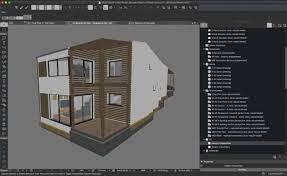 This is the type of software that is used by engineers and architects to produce technical drawings such as designs of building structures and floor plans. Examples include: ArchiCAD, DosmusCAD, AutoCAD, etc.
7. Desktop Publishing Software
These are applications used for creating publications like cards, flyers, calendars, brochures, Newsletters, Certificates, etc. Examples include Microsoft Publisher, Celframe Publisher, Adobe Page Maker, etc.
8. Web Browsing Software
This is the type of software that is used for displaying Webpages from the internet or HTML documents on computers. Examples include Mozilla Firefox, Internet Explorer, Safari, Opera Netscape Navigator, etc.
9. Web Authoring Software This is the type of software that is used by webmasters for building websites. Examples include Microsoft FrontPage, Microsoft Expression Web, Antenna Web Design Studio, Adobe Dreamweaver, etc.
10. Media Players These are used for Audio and Video playback on computers. Examples include Windows Media Player, Nero Showtime, Jet Audio, Power DVD, VLC Media Player, etc.
11. Graphics Software Used by graphic designers to create and design artistic graphics and to manipulate visual images on a computer such as logos, cartoons, etc. Examples include Paint, Adobe Photoshop, Corel Draw, Adobe Illustrator
12. Accounting Software This helps companies to record and report their financial transactions. With accounting software, you perform accounting activities related to the general ledger, accounts receivable, accounts payable, purchasing, invoicing, job costing, payroll functions, etc. Examples include Intuit QuickBooks, Microsoft Accounting, and Sage Peachtree.
13. Audio And Video Editing Software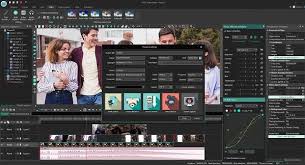 Audio editing software lets users produce studio-quality soundtracks. With video editing software, you can modify video clips: you can reduce the length of a video clip, reorder a series of clips, or add special effects such as words that move horizontally across the screen, etc.