EXPLORING POWERPOINT
| Site: | UNITE LMS |
| Course: | COMPUTER BASIC SKILLS |
| Book: | EXPLORING POWERPOINT |
| Printed by: | Guest user |
| Date: | Thursday, 23 July 2026, 12:25 AM |
1. WORK WITH POWERPOINT
Microsoft PowerPoint 2013 is a presentation program that produces dynamic and powerful slide shows containing movies, sounds, text, graphics, and charts. You can use PowerPoint for formal and informal presentations and meetings, as well as for presentations on the Internet.
The new user interface in PowerPoint 2013 makes creating, presenting, and sharing presentations simpler and more intuitive. With the use of the new Ribbon, tabs, and galleries, PowerPoint 2013 groups common tasks together in the same place.
Themes allow a consistent look and feel to be applied to the presentation, applying a common background, font style, and layout throughout the presentation with a single operation. Themes come with variations, which make it simpler to hone in on the look you want. And when you’re working with others, you can add comments to ask questions and get feedback.
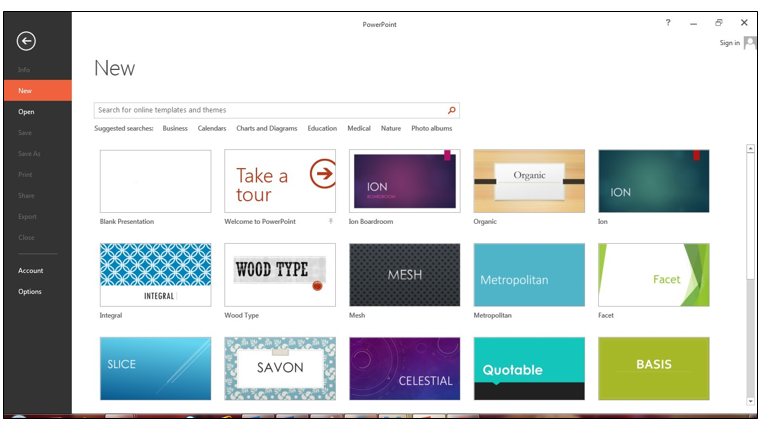
1.1. START POWERPOINT
Steps
To start Microsoft PowerPoint 2013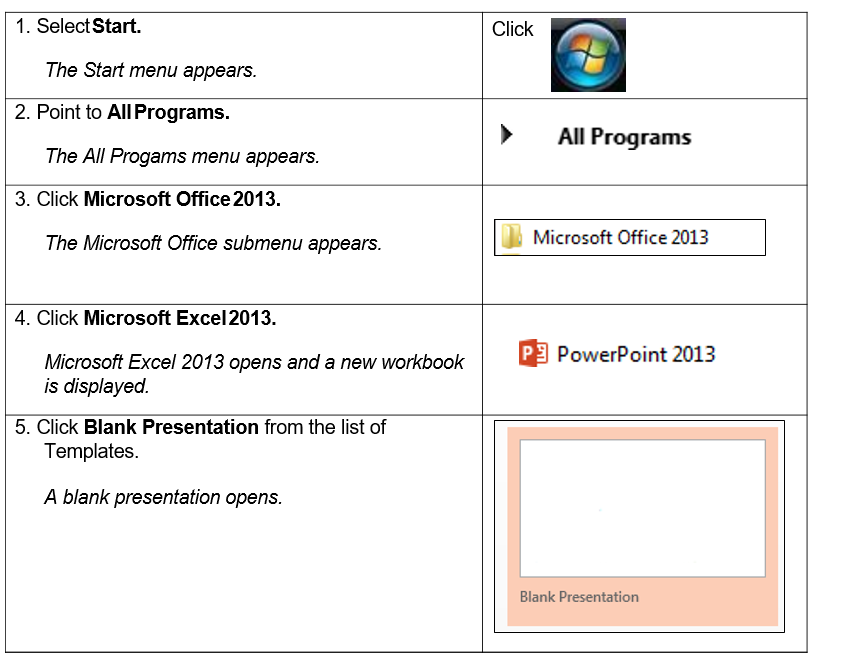
1.2. USE THE QUICK ACCESS TOOLBAR
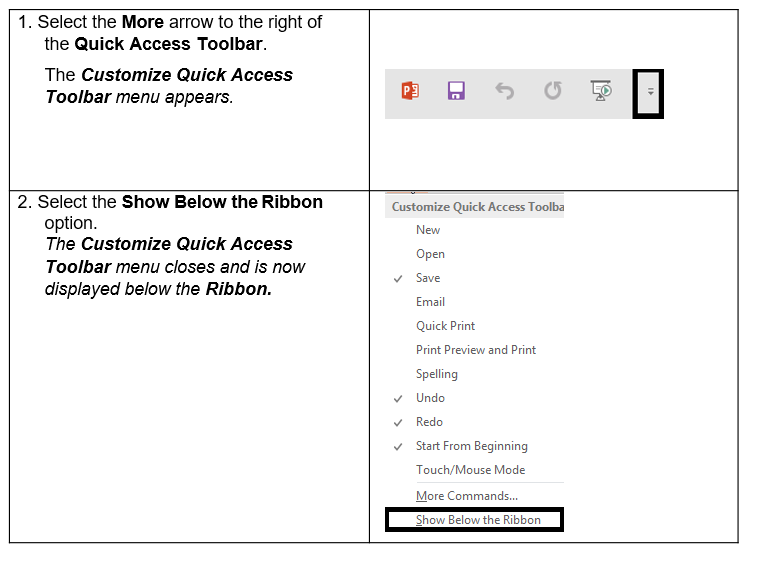
This customizable toolbar allows you to add frequently used commands. You can click on the down arrow at the end of the toolbar to display the available options.
Tip: It is possible to minimize the ribbon by double-clicking on any tab in PowerPoint. To maximize the ribbon, repeat the steps by double-clicking a tab.
1.3. SET USER PREFERENCES
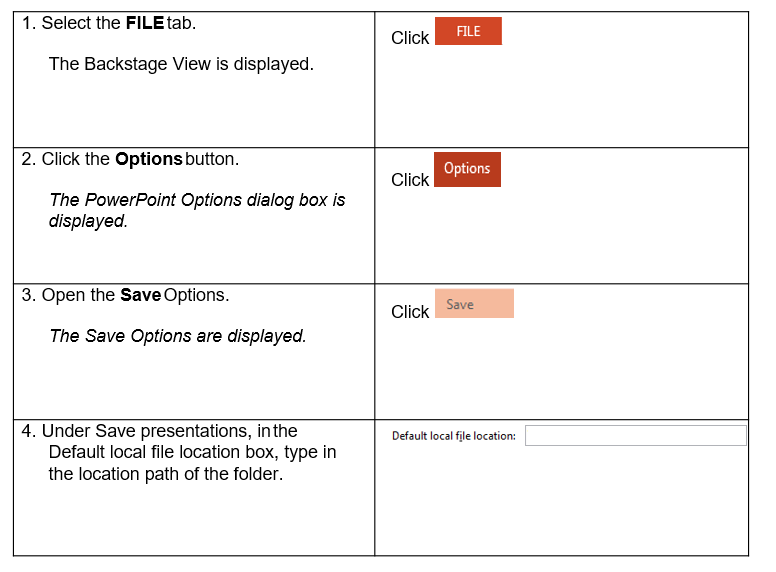
You can use the PowerPoint options feature to set a default user name for the author of any presentations created, and you can select a default folder into which all presentations will be saved and opened by default.
Steps
To set a default user name:

To set a default folder
1.4. USE POWERPOINT HELP
You can get help on a PowerPoint task or feature using the PowerPoint Help window, which can be launched using the help button from the PowerPoint windows. The PowerPoint Help window can search both online and offline sources to provide assistance and training and answer your questions.
PowerPoint also provides tutorials for online instruction, predesigned templates for popular types of presentations, and additional templates are available to download from the Internet.
Steps
To launch the help:

Tip: You
can use the keyboard shortcut F1 to quickly
launch the Help window
1.5. EXIT POWERPOINT
When you’re ready to quit PowerPoint, you have several choices for shutting down the program:
- Click the Close button (the X) in the upper-right corner of the PowerPoint 2013 program window.
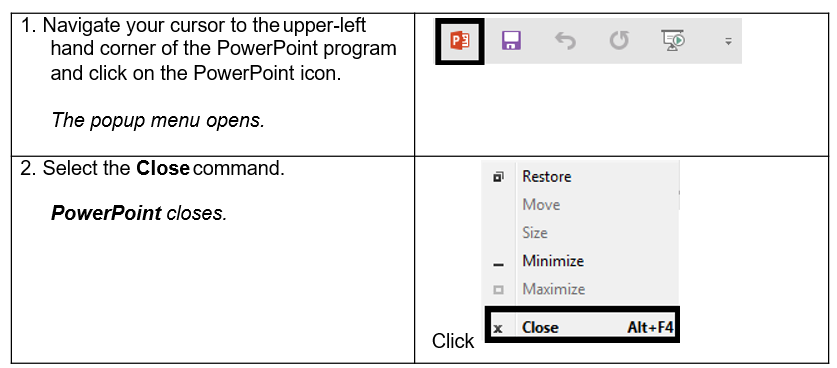
- Click the PowerPoint Application icon in the top left corner of the PowerPoint 2013 program window and click Close.
- Press Alt+F4.
Steps
To exit PowerPoint: