STARTING EXCEL 2016
1. STARTING EXCEL 2013
1.5. WORKING WITH WORKSHEETS
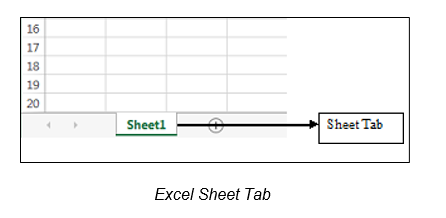
The tab at the bottom of a worksheet displays the name of the worksheet - such as Sheet1, Sheet2, etc. You can switch between worksheets by selecting the desired tab. You can add, rename, and move tab positions as shown in the steps below.
Steps
To work with worksheets:
Open Explore.xlsx. Notice the worksheet tabs at bottom of the Excel window.

You can quickly insert a new worksheet by clicking on the button. Excel named these worksheets using a default name, so consider renaming your worksheets to reflect what they contain. To rename it, double-click on the existing sheet name (e.g. Sheet1) and type a new name.
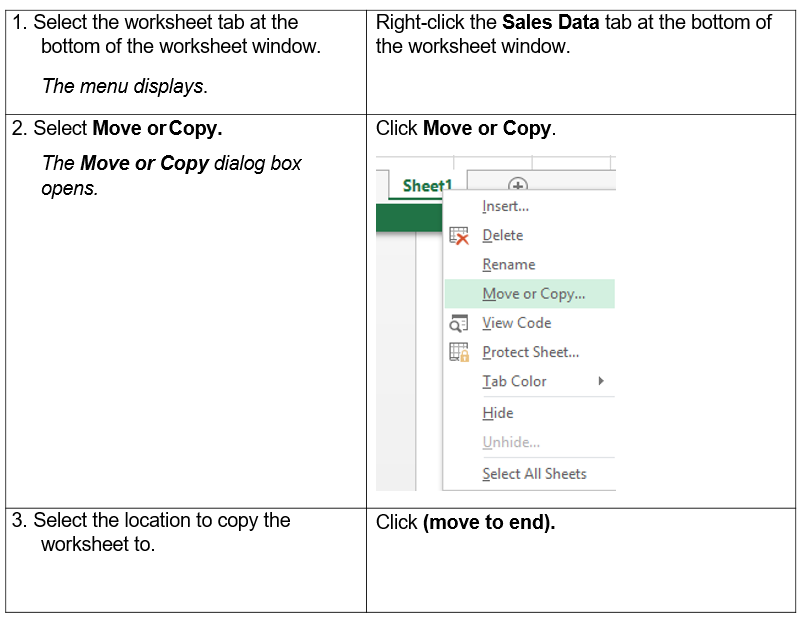
You can copy and move a worksheet within a spreadsheet by right-clicking the worksheet at the bottom of the workbook window, clicking Move or Copy, selecting the location to move the worksheet too, and clicking OK.