STARTING EXCEL 2016
1. STARTING EXCEL 2013
Concepts
Microsoft Excel is a spreadsheet application developed by Microsoft for Microsoft Windows and Mac OS X. It allows you to enter numerical values or data into the rows or columns of a spreadsheet, and use these numerical entries for calculations, graphs, and statistical analysis.
Steps
To start Microsoft Excel 2013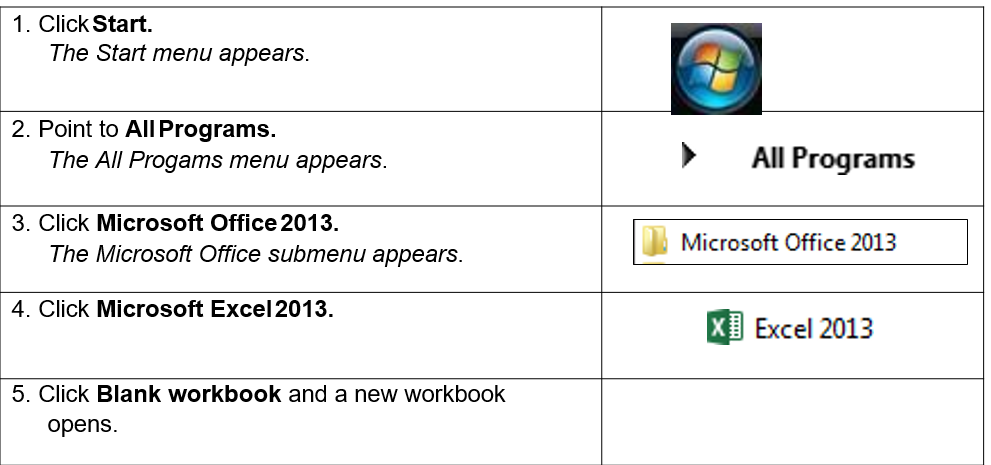
THE USER INTERFACE
Concepts
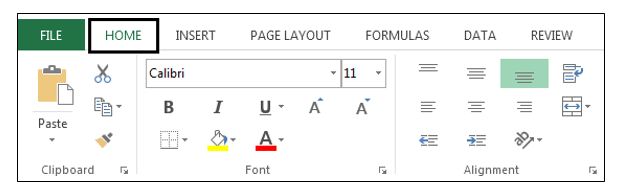
The Microsoft Excel 2013 user interface uses ribbons and tabs just like its predecessor, Microsoft Office 2010. The user interface itself has been tweaked, with changes like blocky worksheet tabs and capitalized ribbon tab names ‒ e.g., "HOME" instead of "Home." Now, you can share your files via e-mail or online.
You can also export your file to create a PDF/XPS document.
Active Cell
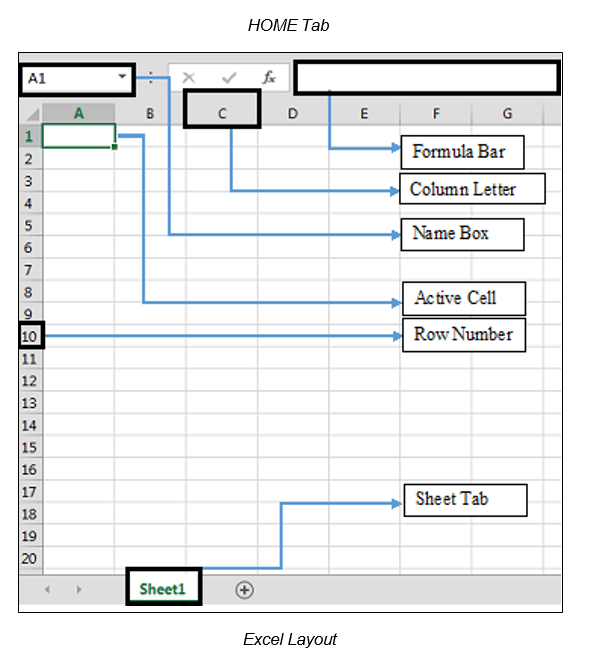
In an Excel 2013 worksheet, an active cell is a cell with a black outline. Data is always entered into the active cell.
Column Letter
Columns run vertically on a worksheet and each column is identified by a letter in the column header.
Formula Bar
Located above the worksheet, this area displays the contents of the active cell. It can also be used for entering or editing data and formulas.
Name Box
Located left to the formula bar, the Name Box displays the cell reference or the name of the active cell.
Row Numbers
Rows run horizontally in a worksheet and are identified by a number in the row header. Together a column letter and a row number create a cell reference. Each cell in the worksheet can be identified by this combination of letters and numbers such as A1, F456, or AA34.
Sheet Tabs
By default, there is one worksheet in an Excel file. The tab at the bottom of a worksheet tells you the name of the worksheet - such as Sheet1, Sheet2, etc.
Quick Access Toolbar
This customizable toolbar allows you to add frequently used commands. Click on the down arrow at the end of the toolbar to display the available options.
Application Button
Clicking on the Application Button displays a drop-down menu containing a number of options, such as open, save, and print. The options in the Button menu are very similar to those found under the File menu in previous versions of Excel.
Ribbon
The Ribbon is the strip of buttons and icons located above the work area in Excel 2013. The Ribbon replaces the menus and toolbars found in earlier versions of Excel.
Steps
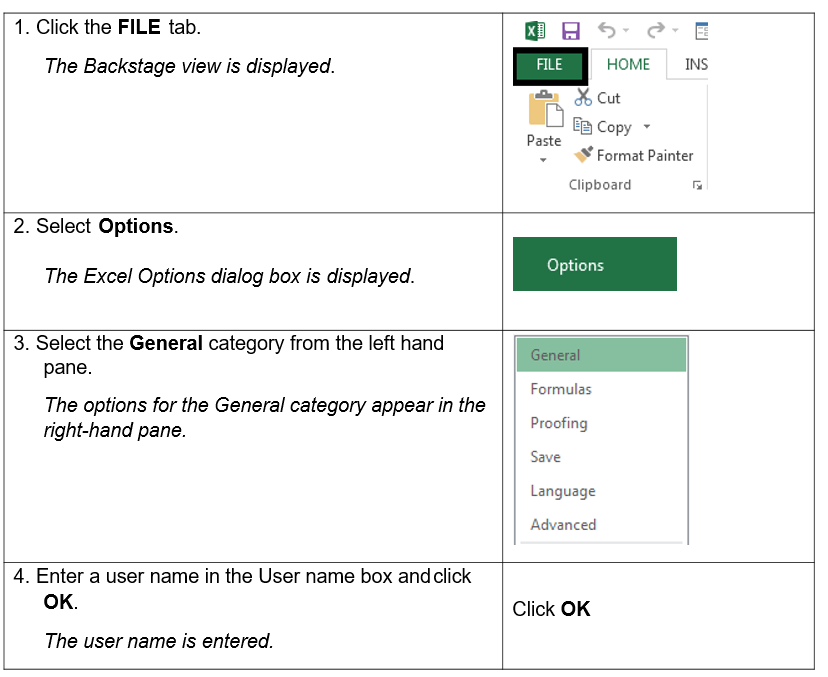
To enter a user name:
Steps
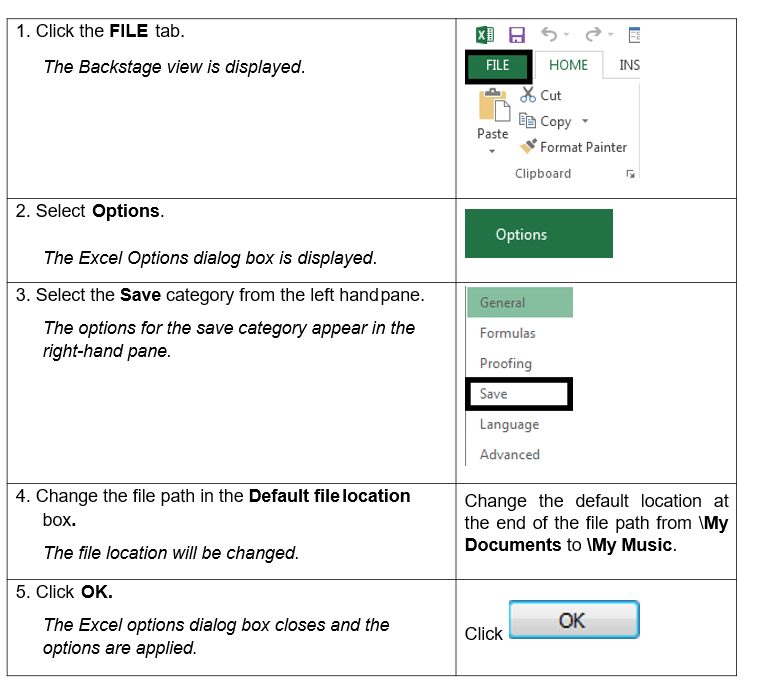
To enter a default file location from which to open and save spreadsheets